AI assistant
Photo check: “does this look right?”
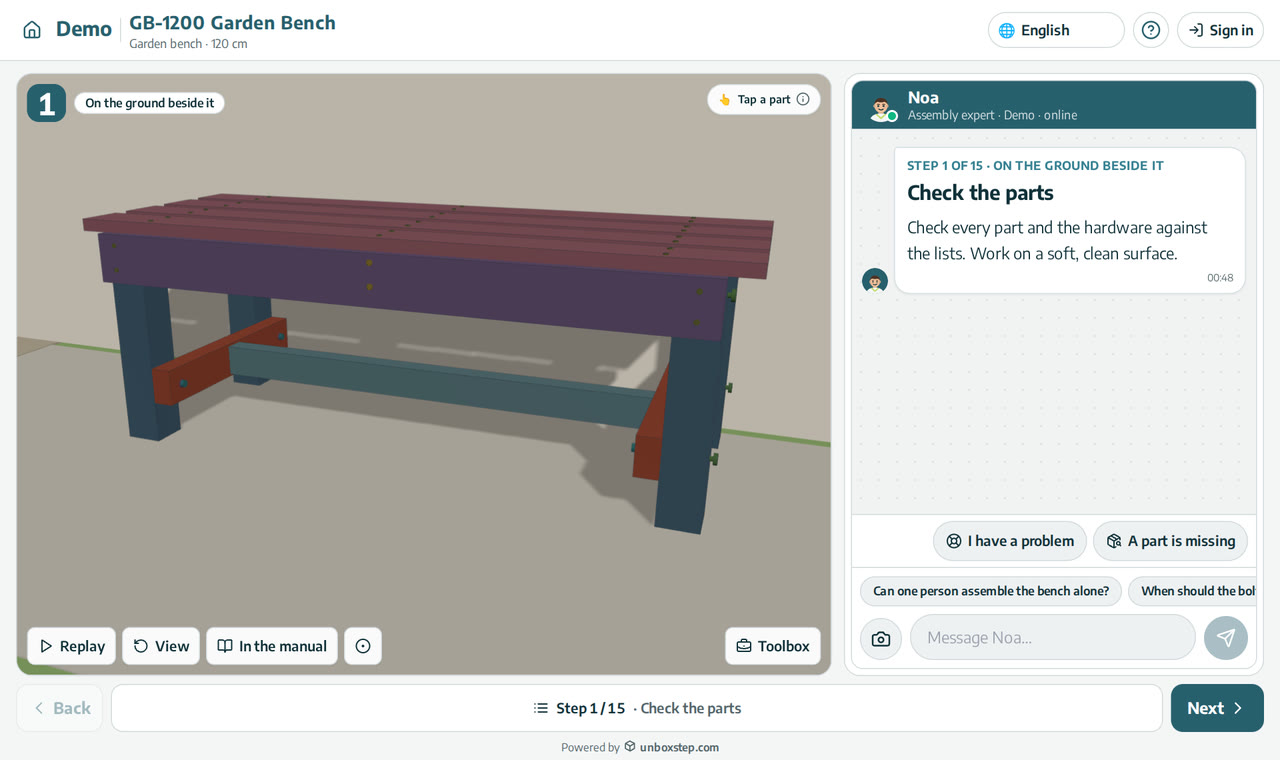
Customers can send the assistant a photo of their work. The assistant compares it with the step they are on and tells them whether it looks right, or what to change before they go on.
Released · in the changelog
The problem
Most assembly mistakes are found three steps later: a panel facing the wrong way, a bracket on the wrong side. By then the customer has to take things apart, and many give up or call support.
How it works
- 1
One tap to the camera
The customer taps the camera in the conversation, or the assistant asks for a photo when it would help.
- 2
Checked against the step
The assistant looks at the photo with the step’s instructions, parts and drawing.
- 3
A clear answer
It says what looks right and what to fix, in the customer’s language, before the next step.
What you get
- Mistakes caught on the step where they happen
- Fewer “it doesn’t fit” calls
- The photo goes with the case if the customer needs your team
Questions
Does it work with any phone?
Yes. The photo is taken in the phone’s browser; no app is needed.
Is a photo check always right?
It is a check, not a guarantee. When the photo is unclear, the assistant asks for another one or offers to send the case to your support team.
Does a photo check use credits?
Yes, a photo check uses 3 AI credits. Opening guides never does.
New to interactive assembly guides? Read PDF manual vs interactive 3D guide, or see all guides and video tutorials.
Related features
An AI assembly assistant on every step
The assistant sees the step your customer is on, its parts and hardware, and answers in their language. Part numbers in an answer open the part in 3D.
Learn moreHand-off to your support team with full context
When the assistant can’t help, your team receives the product, step, conversation and photo, and can reply from UnboxStep.
Learn more“A part is missing” — checked before support
The assistant checks whether the part belongs to a later step or is already fitted, and only then opens a case.
Learn more